

If you’re searching for clear answers about persistent smartphone power loss, you’re likely frustrated by quick fixes that never address the real cause. This guide is built specifically to help you understand battery drain diagnosis from the ground up—whether the issue stems from background apps, failing hardware components, unstable updates, or deeper system-level inefficiencies.
Instead of generic advice, we break down the core technical factors that impact battery performance, explain how modern devices manage power, and outline practical troubleshooting steps that actually work. Our insights are grounded in ongoing analysis of emerging device behavior, secure protocol performance, and real-world testing across operating environments.
By the end of this article, you’ll know how to pinpoint what’s draining your battery, apply targeted solutions, and prevent recurring issues—saving time, extending device lifespan, and restoring reliable performance.
Unexpected battery loss frustrates users and signals deeper faults. Instead of guessing, start with high-level software checks. Review system settings, screen-on time, and background app activity. On Android and iOS, built-in usage dashboards reveal which processes consume most power (often a misbehaving social app). If software looks normal, move to:
- Calibrating the battery and updating firmware
- Measuring voltage and current with a multimeter
- Inspecting connectors for corrosion or heat damage
This layered battery drain diagnosis narrows variables logically. By isolating one factor at a time, you confirm whether the issue stems from code, components, or charging circuitry.
Establishing a Baseline: The First Step in Any Battery Test
Before you can spot abnormal drain, you need a baseline—a verified known good state that defines normal power consumption. Think of it as your control group in a science experiment. Without it, battery drain diagnosis becomes guesswork (and guesswork is expensive).
Creating a Controlled Test Environment
Scenario A: You test a device loaded with apps, Wi-Fi on, brightness fluctuating.
Scenario B: You perform a factory reset, enable Airplane Mode, fix screen brightness at 50%, and maintain stable room temperature.
A vs B isn’t subtle. Scenario B removes background noise, giving repeatable, comparable results. Temperature alone can skew lithium-ion performance by 10–20% (U.S. Department of Energy).
Pro tip: Always document your exact settings so future tests match precisely.
Baseline Measurement Techniques
Charge to 100%, let the device idle for 8 hours, then record percentage drop. Basic method: battery percentage comparison. Advanced method: use a coulomb counter (a sensor measuring charge flow in mAh) or external power monitor for precise consumption data. Precision beats assumption every time.
Software Sleuthing: Isolating Rogue Apps and Processes
When your device battery drops from 80% to 20% before lunch, it’s rarely “just old age.” More often, a misbehaving app is quietly draining power in the background. The key is smart battery drain diagnosis using tools you already have.
Leveraging On-Device Analytics
Start with built-in battery settings. On Android, open Battery usage; on iOS, tap Battery to see per-app consumption. Look for apps with disproportionately high background activity. If a note-taking app uses more power than your streaming service, that’s a red flag (unless you’re binge-watching lecture recordings all day).
Pay attention to screen-on vs. background time. High background usage suggests the app is running processes even when you’re not actively using it. Consistent background drain is often the first clue of a rogue process.
Detecting Abnormal CPU and Radio Activity
A “wakelock” is a mechanism that prevents your device from entering deep sleep. While useful for tasks like music playback, excessive wakelocks keep the CPU or radio active unnecessarily. Tools like Android’s Battery Historian visualize when the device is awake and which processes triggered it. If you see frequent wake events tied to one app, you’ve likely found the culprit.
Pro tip: Network-heavy apps may repeatedly ping servers, similar to issues discussed in how to fix common wi fi connectivity issues at home.
Application Profiling for Developers
For deeper analysis, use Android Studio Profiler or Xcode’s Instruments. These tools break down CPU, memory, network, and location usage per thread. This granular view enables precise code-level fixes—turning vague suspicion into actionable optimization.
Hardware Diagnostics: From Component Isolation to Power Measurement
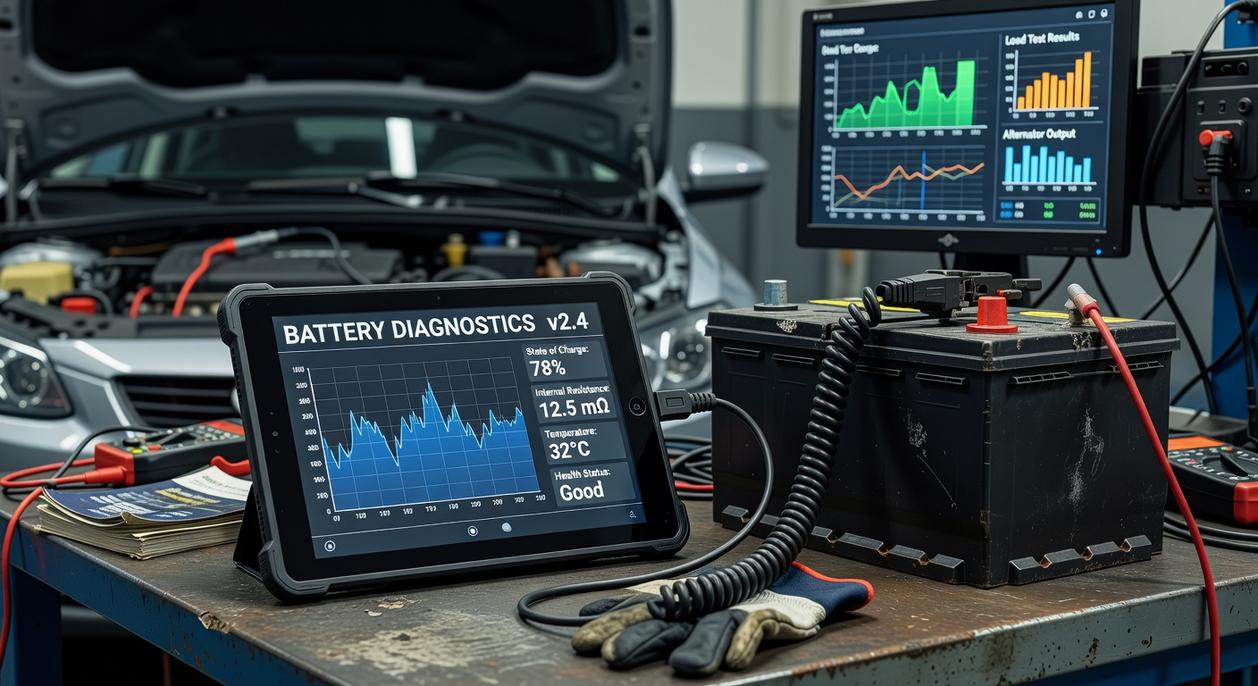
When unexplained power loss persists, hardware—not software—is often the culprit. That’s where the Peripheral Elimination Method comes in. In simple terms, this approach isolates (separates for testing) individual components to see which one is misbehaving.
First, systematically disable radios and modules in software. For example:
- GPS
- Wi-Fi
- Bluetooth and cellular modem
- NFC
Observe current draw after each change. If disabling Wi-Fi drops consumption by 120 mA, you’ve likely found a suspect. Some argue this method is outdated because modern operating systems manage radios efficiently. However, real-world failures—like a stuck baseband processor constantly searching for signal—prove otherwise (a common issue noted in mobile repair case studies).
Next, consider the definitive method: direct current measurement. By bypassing the internal battery and powering the device through a DC bench supply or precision power analyzer, you get real-time milliamp (mA) readings. A milliamp is one-thousandth of an ampere, the unit measuring electrical current. This setup makes cause-and-effect testing immediate. Change a setting, watch the numbers shift. (It’s oddly satisfying—like watching a live scoreboard.) Pro tip: enable data logging on the analyzer to capture transient spikes you might otherwise miss.
Finally, thermal analysis adds another layer. Using a thermal imaging camera, you can detect “hot spots” on the PCB. Excess heat often signals a short circuit—an unintended low-resistance connection causing abnormal current flow. Critics say thermal cameras are overkill for routine battery drain diagnosis. Yet when a tiny capacitor glows like a lightsaber on-screen, the value becomes undeniable.
Together, these methods transform guesswork into measurable proof.
Advanced Scenarios: Uncovering Intermittent and Conditional Drains
Some power issues only appear under very specific conditions—which is why basic battery drain diagnosis sometimes misses them. For example, a weak cellular signal forces a device’s radio to boost transmission power, significantly increasing consumption (yes, your phone works harder when you’re in the middle of nowhere). Similarly, high ambient temperatures can raise internal resistance, while transitions like switching from Wi-Fi to cellular may trigger short but sharp spikes.
To isolate these scenarios:
- Recreate environmental stressors by reducing signal strength or adjusting temperature.
- Monitor state transitions during network handoffs or app wake cycles.
- Document timing correlations between events and power spikes.
However, what if the drain refuses to cooperate? That’s where long-term logging comes in. Using a USB power meter or dedicated logger over 24–72 hours reveals patterns tied to specific times or background processes.
Next, consider automating alerts when thresholds are exceeded—because prevention beats detective work every time.
From Diagnosis to Resolution: Applying Your Findings Effectively
You’ve gathered metrics, logs, and user reports. Now comes the synthesis. Data without interpretation is just noise. The goal is linking symptoms to a root cause.
Consider two paths side-by-side:
- Software fault (A): Error logs spike after an update; rollback stabilizes performance.
- Hardware fault (B): Voltage irregularities persist across clean installs.
In battery drain diagnosis, this distinction matters. A misbehaving background app demands a detailed bug report with logs. A failing regulator calls for component repair or replacement.
Systematic isolation clarifies outcomes: patch firmware, escalate a reproducible bug, or swap defective hardware. (Guesswork feels faster—until it isn’t.)
Take Control of Your Device Performance Today
You came here looking for clarity on persistent performance issues, unexpected shutdowns, and the frustration of power loss at the worst possible moments. Now you understand the core causes behind these problems — from system inefficiencies and background process overload to the importance of accurate battery drain diagnosis.
Ignoring these warning signs only leads to more downtime, reduced device lifespan, and potential security risks. Acting early protects both your productivity and your technology investment.
Here’s what to do next: run a structured battery drain diagnosis, apply the optimization steps outlined above, and implement secure protocol updates to prevent recurring issues. Don’t wait for another unexpected shutdown to disrupt your workflow.
If you want proven, step-by-step solutions trusted by thousands of tech-savvy users, explore our expert troubleshooting guides and innovation alerts today. Get ahead of device failures, strengthen your system security, and restore peak performance now.

 Ask Zelviera Durnhanna how they got into device troubleshooting guides and you'll probably get a longer answer than you expected. The short version: Zelviera started doing it, got genuinely hooked, and at some point realized they had accumulated enough hard-won knowledge that it would be a waste not to share it. So they started writing.
What makes Zelviera worth reading is that they skips the obvious stuff. Nobody needs another surface-level take on Device Troubleshooting Guides, Core Tech Concepts and Basics, Emerging Device Breakthroughs. What readers actually want is the nuance — the part that only becomes clear after you've made a few mistakes and figured out why. That's the territory Zelviera operates in. The writing is direct, occasionally blunt, and always built around what's actually true rather than what sounds good in an article. They has little patience for filler, which means they's pieces tend to be denser with real information than the average post on the same subject.
Zelviera doesn't write to impress anyone. They writes because they has things to say that they genuinely thinks people should hear. That motivation — basic as it sounds — produces something noticeably different from content written for clicks or word count. Readers pick up on it. The comments on Zelviera's work tend to reflect that.
Ask Zelviera Durnhanna how they got into device troubleshooting guides and you'll probably get a longer answer than you expected. The short version: Zelviera started doing it, got genuinely hooked, and at some point realized they had accumulated enough hard-won knowledge that it would be a waste not to share it. So they started writing.
What makes Zelviera worth reading is that they skips the obvious stuff. Nobody needs another surface-level take on Device Troubleshooting Guides, Core Tech Concepts and Basics, Emerging Device Breakthroughs. What readers actually want is the nuance — the part that only becomes clear after you've made a few mistakes and figured out why. That's the territory Zelviera operates in. The writing is direct, occasionally blunt, and always built around what's actually true rather than what sounds good in an article. They has little patience for filler, which means they's pieces tend to be denser with real information than the average post on the same subject.
Zelviera doesn't write to impress anyone. They writes because they has things to say that they genuinely thinks people should hear. That motivation — basic as it sounds — produces something noticeably different from content written for clicks or word count. Readers pick up on it. The comments on Zelviera's work tend to reflect that.