

If your laptop battery seems to drop from 100% to critical in what feels like minutes, you’re not alone. Rapid power loss is one of the most common frustrations for modern device users—and it often signals deeper issues with system settings, background processes, battery health, or emerging software conflicts.
This guide is built for readers actively searching for reliable, practical laptop battery drain solutions that actually work. Instead of generic tips, we break down the root causes of battery drain, from hidden startup apps and power-hungry updates to thermal inefficiencies and outdated drivers. You’ll learn how to diagnose the real problem, apply targeted fixes, and optimize your device for long-term performance.
Our recommendations are grounded in up-to-date technical research, device-level diagnostics, and proven troubleshooting frameworks used across multiple operating systems. By the end, you’ll not only extend your battery life—but understand exactly why the issue happened in the first place.
That low-battery warning always pops up at the worst possible moment—mid-presentation, mid-flight, mid-epiphany. Suddenly, productivity stalls. In my view, poor battery life isn’t a minor annoyance; it’s a leash, tethering your “portable” device to the nearest wall. Worse, many default settings quietly waste power.
So, what actually works?
- Lower screen brightness and disable background startup apps.
- Adjust power modes and update drivers regularly.
- Rethink charging habits to protect long-term health.
I’ve tested countless laptop battery drain solutions, and frankly, small tweaks outperform flashy apps. Ultimately, consistent optimization wins. And yes, discipline beats desperation every time. Trust me.
Master Your Settings: The Software Side of Battery Savings
The Brightness Blind Spot
First things first: your display is the biggest power hog on your laptop. The screen’s backlight (the light source behind the pixels) can consume more energy than your processor during light tasks. Lowering brightness by even 20% can noticeably extend battery life.
On Windows:
- Go to Settings > System > Display
- Use the brightness slider
- Enable Change brightness automatically (adaptive brightness adjusts based on ambient light)
On macOS:
- Open System Settings > Displays
- Adjust the brightness slider
- Toggle on Automatically adjust brightness
It sounds simple, yet many users ignore it (until they’re hunting for an outlet at 5%).
Leverage Built-in Power Modes
Next, explore power plans:
- Best Performance: Maximizes speed, drains battery faster
- Balanced: Mixes efficiency and performance
- Best Battery Life: Reduces background activity and screen intensity
On Windows, visit Settings > System > Power & Battery to customize sleep timers and processor limits. On macOS, use Battery Settings to enable low power mode.
Some argue performance trade-offs aren’t worth it. Fair point. However, for writing, browsing, or streaming, the difference is barely noticeable.
Tame Background Processes
Meanwhile, open Task Manager (Windows) or Activity Monitor (macOS) to spot CPU-heavy apps. Disable unnecessary startup programs. Why let five apps launch when you only use two?
Connectivity Control
Finally, Wi-Fi, Bluetooth, and peripherals constantly search for signals. Toggle them off when unused. These small tweaks form practical laptop battery drain solutions.
Looking ahead, it’s likely operating systems will automate these optimizations using AI (speculation, but trends point there). Until then, smart manual control keeps you powered longer.
Smart Charging Habits & Physical Care
The 20–80 Rule Explained
First, let’s define a key term: lithium-ion battery stress refers to chemical strain inside the battery when it’s pushed to extreme charge levels. Keeping your battery between 20% and 80% reduces this stress and slows long-term capacity loss. According to Battery University, high voltage (near 100%) accelerates chemical aging in lithium-ion cells (BatteryUniversity.com).
Some people insist you should fully drain your battery to “keep it healthy.” That advice applied to older nickel-based batteries, not modern lithium-ion. In fact, frequent deep discharges increase wear. Think of it like revving your car engine to redline every trip (sure, it runs—but at a cost). Instead, top up before dropping below 20%.
Heat Is the Enemy
Next, understand this: heat permanently degrades battery capacity. Apple notes that exposure above 35°C (95°F) can damage battery health (Apple Support). Avoid direct sunlight, and never block ventilation by using your laptop on beds or pillows. A simple laptop stand improves airflow significantly. Pro tip: if your device feels hot during gaming or video editing, take a short cooling break.
Calibrate Your Battery (Occasionally)
Over time, the battery percentage indicator can become inaccurate. To recalibrate, let the battery drop close to 0%, power off, then charge uninterrupted to 100%. Do this sparingly—every few months is enough.
Long-Term Storage Protocol
Finally, if storing your laptop for weeks, charge it to around 50% and keep it in a cool, dry place. A full charge or empty state during storage accelerates degradation. Combine these habits with smart laptop battery drain solutions, and your device will thank you with years of reliable performance.
Advanced Techniques for Power Users
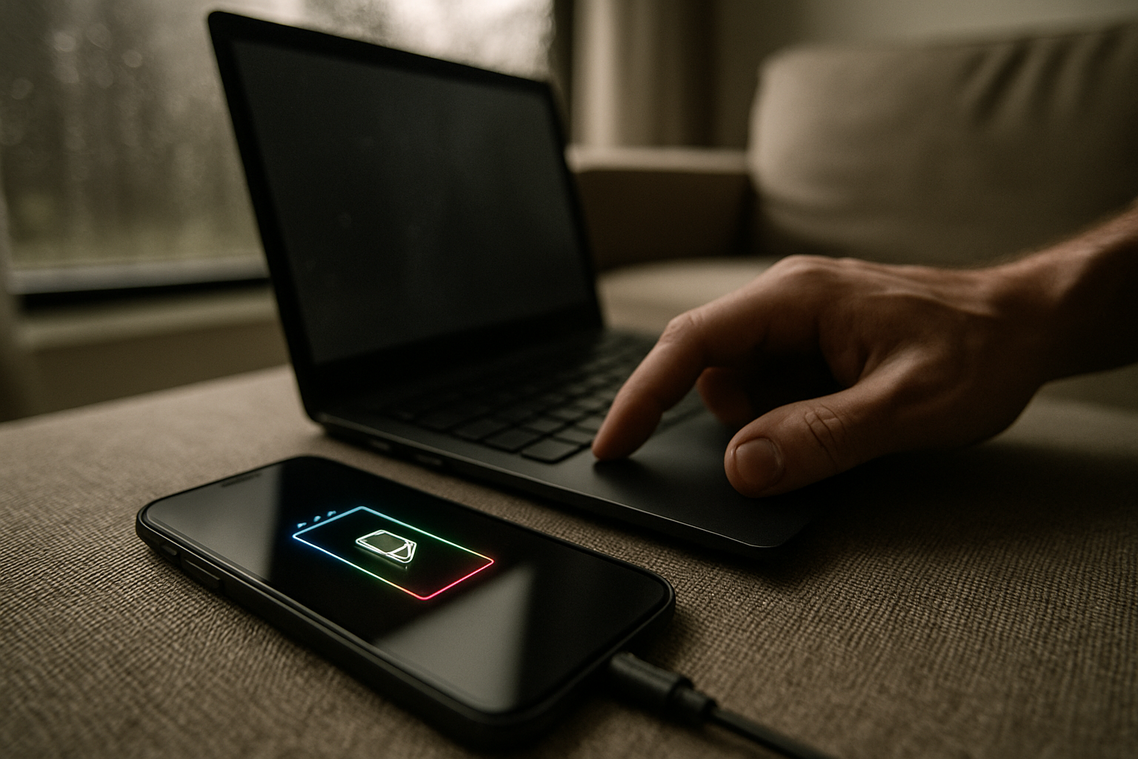
Last year, I was on a cross-country flight, laptop at 42%, no outlet in sight. That’s when I stopped blaming “bad batteries” and started digging into ADVANCED controls most people ignore.
Fine-Tune Your Hardware
If you’re not gaming or editing video, temporarily disable your dedicated GPU (graphics processing unit) and force integrated graphics in your system’s graphics settings. Integrated graphics use far less power (because they share memory with the CPU). I’ve squeezed an extra hour this way. You can also disable your webcam in Device Manager (Windows) or restrict camera access in macOS settings, and turn off keyboard backlighting. Small cuts add up.
Generate a Battery Health Report
On Windows, open Command Prompt and type: powercfg /batteryreport. On macOS, hold Option and click the Apple menu > System Information > Power.
Compare Design Capacity (original maximum charge) with Full Charge Capacity (current maximum). If your full charge is under 80% of design capacity, degradation is significant (Apple notes lithium-ion batteries typically retain up to 80% after 500 cycles).
Manage App-Specific Power Usage
Background apps are silent killers. In Windows: Settings > System > Power & Battery > Battery Usage. On macOS: System Settings > Battery. Restrict apps running in the background and monitor usage spikes.
Some argue these tweaks are overkill compared to simple laptop battery drain solutions. Maybe. But when minutes matter, control beats guesswork.
Pro tip: Cross-check unusual battery drain with connectivity issues using how to resolve bluetooth pairing errors quickly.
Common Battery Myths Debunked
Myth 1: The “Memory Effect”
This issue affected older nickel-cadmium batteries, which could lose capacity after repeated partial charges. Modern lithium-ion cells don’t work that way. According to Battery University, partial charging reduces stress and extends lifespan.
Myth 2: Always Leave It Plugged In
Keeping a laptop at 100% increases heat and voltage stress. Studies show lithium-ion batteries age faster when stored charged, especially above 30°C.
Myth 3: Third-Party Chargers Are Always Bad
Cheap, uncertified chargers can fail safety tests. However, third-party models meeting UL or USB-C PD standards perform safely—and support laptop battery drain solutions.
Being chained to a charger is exhausting. The good news? You control more than you think. Longer battery life comes from smart settings and mindful habits working together. By dimming brightness, limiting background apps, and updating your OS, you reduce unnecessary drain. By avoiding extreme heat and keeping charge between 20–80%, you minimize chemical stress inside lithium-ion cells (the quiet culprit behind aging).
Try this today:
- Adjust one power setting.
- Change one charging habit.
- Apply one advanced tweak like disabling keyboard backlighting.
These laptop battery drain solutions deliver immediate gains and long-term battery health starting today consistently.
Take Control of Your Battery Life Today
You came here because your laptop battery keeps draining faster than it should — interrupting your workflow, limiting your mobility, and forcing you to stay tethered to a charger. Now you understand the real causes behind excessive power loss, from background processes to outdated drivers and inefficient settings.
More importantly, you have practical laptop battery drain solutions you can apply immediately. When you optimize system settings, manage startup apps, update firmware, and monitor battery health, you’re not just extending battery life — you’re protecting your device’s long‑term performance.
Battery drain isn’t just an inconvenience. It slows productivity, disrupts focus, and shortens hardware lifespan. The longer it goes unchecked, the more it costs you in time and efficiency.
Start applying these fixes today. If you want step‑by‑step troubleshooting guides, secure optimization strategies, and expert‑backed tech insights trusted by thousands of readers, explore our latest resources now and take control of your device’s performance before battery issues take control of you.

 Ask Joel Pablocincos how they got into innovation alerts and you'll probably get a longer answer than you expected. The short version: Joel started doing it, got genuinely hooked, and at some point realized they had accumulated enough hard-won knowledge that it would be a waste not to share it. So they started writing.
What makes Joel worth reading is that they skips the obvious stuff. Nobody needs another surface-level take on Innovation Alerts, Insider Knowledge, Secure Protocol Development. What readers actually want is the nuance — the part that only becomes clear after you've made a few mistakes and figured out why. That's the territory Joel operates in. The writing is direct, occasionally blunt, and always built around what's actually true rather than what sounds good in an article. They has little patience for filler, which means they's pieces tend to be denser with real information than the average post on the same subject.
Joel doesn't write to impress anyone. They writes because they has things to say that they genuinely thinks people should hear. That motivation — basic as it sounds — produces something noticeably different from content written for clicks or word count. Readers pick up on it. The comments on Joel's work tend to reflect that.
Ask Joel Pablocincos how they got into innovation alerts and you'll probably get a longer answer than you expected. The short version: Joel started doing it, got genuinely hooked, and at some point realized they had accumulated enough hard-won knowledge that it would be a waste not to share it. So they started writing.
What makes Joel worth reading is that they skips the obvious stuff. Nobody needs another surface-level take on Innovation Alerts, Insider Knowledge, Secure Protocol Development. What readers actually want is the nuance — the part that only becomes clear after you've made a few mistakes and figured out why. That's the territory Joel operates in. The writing is direct, occasionally blunt, and always built around what's actually true rather than what sounds good in an article. They has little patience for filler, which means they's pieces tend to be denser with real information than the average post on the same subject.
Joel doesn't write to impress anyone. They writes because they has things to say that they genuinely thinks people should hear. That motivation — basic as it sounds — produces something noticeably different from content written for clicks or word count. Readers pick up on it. The comments on Joel's work tend to reflect that.