
If you’re searching for real, effective gaming pc overheating solutions, you’re likely dealing with loud fans, sudden frame drops, thermal throttling, or even random shutdowns mid-game. Overheating isn’t just annoying — it can shorten your hardware’s lifespan and quietly damage critical components like your CPU and GPU.
This article is designed to give you clear, actionable fixes that actually work. We’ll break down the root causes of overheating, from poor airflow and dust buildup to thermal paste failure and inadequate cooling configurations. You’ll learn how to diagnose temperature issues correctly, apply proven cooling optimizations, and decide when hardware upgrades are truly necessary.
Our guidance is built on tested hardware diagnostics, current thermal management standards, and hands-on troubleshooting experience with modern gaming systems. Instead of generic advice, you’ll get practical steps you can apply immediately to stabilize temperatures and protect your investment.
Diagnosing the Heat: Understanding Your PC’s Temperatures
Why does your PC get so hot? High-performance components like the CPU (central processing unit, the computer’s brain) and GPU (graphics processing unit, which renders images and video) generate heat as a byproduct of crunching billions of calculations per second. It’s the Fast & Furious of silicon—lots of speed, lots of heat.
So, what’s safe? Generally, CPUs and GPUs should idle between 30–50°C and stay under 85°C under load. Brief spikes happen, but sustained temps above that can throttle performance or shorten lifespan (nobody wants that).
To keep tabs on things, use free tools like HWMonitor, MSI Afterburner, or Core Temp. These apps show real-time readings.
Next, identify the hot spot. Run a game or stress test and watch which component climbs fastest. If it’s the GPU, focus on gaming pc overheating solutions; if it’s the CPU, check cooling and airflow first.
The No-Cost Fixes: Mastering Airflow and Cleanliness
The #1 Culprit: Dust
While diagnosing overheating issues in your gaming PC, it’s also worth exploring how innovative technologies, such as solid-state batteries, are revolutionizing energy management in mobile devices, potentially offering insights into optimizing performance across platforms – for more details, check out our Solid-State Battery Advances and Their Impact on Mobile Devices.
Dust isn’t just cosmetic—it’s thermal insulation. When it settles on fans, heatsinks (metal components designed to dissipate heat), and filters, it traps heat and suffocates airflow. According to PC hardware testing by Gamers Nexus, heavy dust buildup can raise component temperatures by several degrees Celsius, reducing performance and lifespan. Think of it like trying to breathe through a pillow (not ideal).
Step-by-Step Cleaning Guide
Before you start: power down and unplug your PC.
- Move your system to a well-ventilated area.
- Use compressed air (short bursts only) to clean:
- Case fans – Hold blades still to prevent overspinning.
- CPU cooler – Blow air through the heatsink fins.
- GPU fans – Clean between shroud openings carefully.
- Dust filters – Remove and rinse if washable; dry fully.
- Avoid vacuums (they can generate static electricity).
Pro tip: Clean every 3–6 months if you live in a dusty environment.
Optimizing Case Fan Configuration
Airflow works best with balanced pressure:
- Positive pressure: More intake than exhaust (reduces dust entry).
- Negative pressure: More exhaust than intake (can pull dust in).
Ideal setup:
- Intake fans at the front/bottom
- Exhaust fans at the rear/top
This push-pull layout follows natural heat rise and is one of the simplest gaming pc overheating solutions.
Cable Management Matters
Loose cables block airflow pathways. Route cables behind the motherboard tray and secure them with zip ties. When cool air has a clear path to the CPU and GPU, temperatures drop noticeably (sometimes 3–5°C in real-world builds).
Clean system. Clear airflow. Cooler performance.
Software and Settings: Lowering Temps Without Opening Your Case
Before you grab a screwdriver, start with software. First, set a custom fan curve using MSI Afterburner or your BIOS/UEFI. A fan curve defines how quickly fans ramp up as temperatures rise. Instead of waiting until your GPU hits 80°C, you can program fans to increase speed at 65–70°C. As a result, heat never gets the chance to snowball (think of it as turning on the AC before your house becomes a sauna). Pro tip: prioritize steady ramp-ups over sudden spikes to reduce noise fatigue.
Next, consider undervolting. Undervolting means reducing voltage supplied to your CPU or GPU while maintaining near-identical performance. Because power consumption and heat scale with voltage (U.S. Department of Energy notes lower voltage reduces thermal output), even small adjustments can drop temps by 5–10°C. Critics argue it risks instability—and yes, careless tweaks can. However, with incremental testing, it’s one of the most overlooked gaming pc overheating solutions.
Meanwhile, tweak in-game settings. Lower shadow quality, anti-aliasing, or resolution scaling—these heavily tax GPUs. Finally, update drivers. Outdated GPU drivers can cause inefficient operation and excess heat (NVIDIA support documentation confirms performance fixes often include thermal optimizations). For broader diagnostics, see how to diagnose common smartphone performance issues.
Hardware Upgrades: When the Basics Aren’t Enough
Sometimes cleaning dust and tweaking fan curves just won’t cut it. That’s when hardware upgrades become the smarter move.
Replacing Thermal Paste
Thermal paste is a heat-conductive compound that fills microscopic gaps between your CPU (or GPU) and its cooler. Over time, it dries out and loses efficiency, reducing thermal transfer (the movement of heat from chip to cooler). Old paste vs fresh paste isn’t subtle—fresh application can drop temps by 5–15°C depending on condition (a noticeable win during heavy gaming). Advanced users can repaste GPUs too, though that requires careful disassembly.
Upgrading Your CPU Cooler
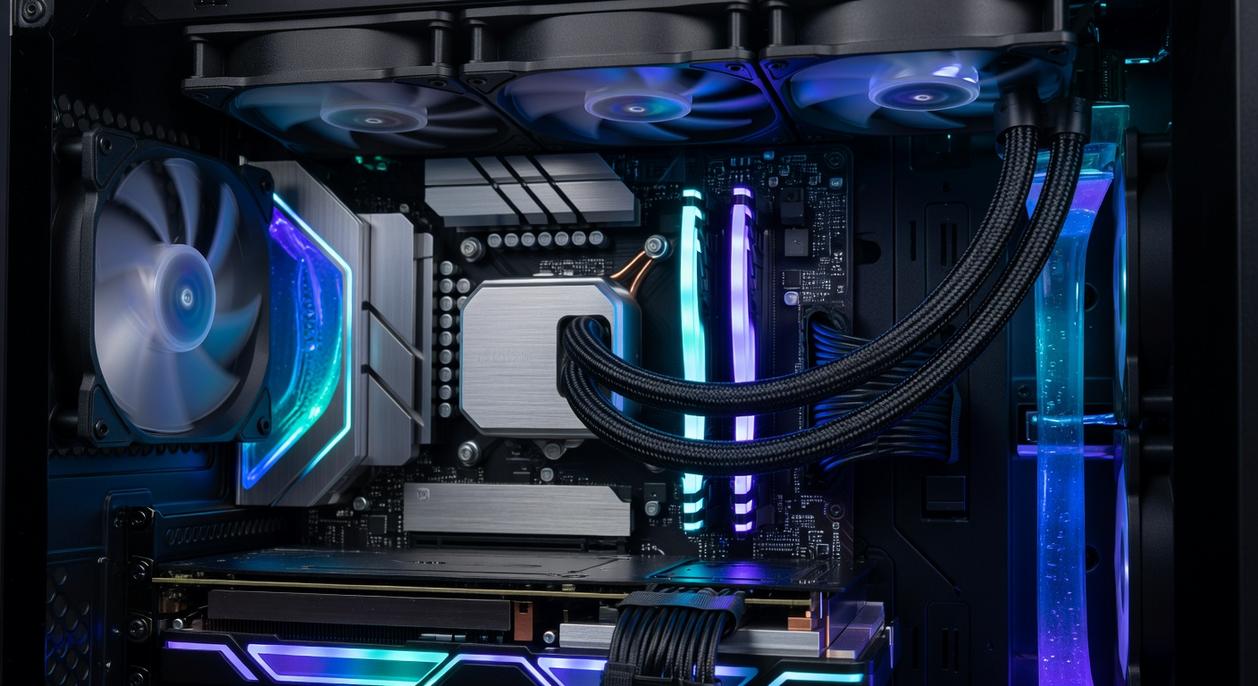
Stock cooler vs aftermarket air cooler? Stock models handle basic workloads, but tower-style air coolers offer larger heatsinks and quieter fans. Air cooler vs AIO liquid cooler? AIOs use liquid circulation to dissipate heat more efficiently under sustained loads. If you’re overclocking, liquid often wins; for reliability and simplicity, high-end air coolers hold their ground.
Adding More Case Fans
One exhaust fan vs balanced intake and exhaust? Balanced airflow improves the entire case’s thermal environment. More intake reduces hotspots; more exhaust clears trapped heat.
Considering a New Case
Old restrictive case vs modern high-airflow design? Mesh fronts and optimized layouts dramatically improve gaming pc overheating solutions. Sometimes airflow—not components—is the bottleneck. (Yes, your case might be the villain.)
Take Control of Your System’s Performance Today
You came here looking for clear, practical answers to stop your system from running hot and risking performance drops or hardware damage. Now you understand what causes overheating, how airflow, thermal paste, fan curves, and component load all play a role—and most importantly, what you can do about it.
Overheating isn’t just annoying. It throttles your FPS, shortens component lifespan, and can lead to sudden shutdowns right when performance matters most. Ignoring it only makes the problem worse.
The right gaming pc overheating solutions don’t just cool your machine—they protect your investment, stabilize performance, and give you consistent power when you need it.
If you’re tired of frame drops, loud fans, or worrying about hardware damage, take action now. Follow the troubleshooting steps outlined above, upgrade weak cooling points, and implement proven optimization strategies. Thousands of tech enthusiasts rely on expert-backed insights and tested methods to keep their systems running at peak efficiency.
Don’t wait for your next crash or thermal throttle—start optimizing your cooling setup today and restore the performance your system was built to deliver.

 Ask Bradford Folandevada how they got into emerging device breakthroughs and you'll probably get a longer answer than you expected. The short version: Bradford started doing it, got genuinely hooked, and at some point realized they had accumulated enough hard-won knowledge that it would be a waste not to share it. So they started writing.
What makes Bradford worth reading is that they skips the obvious stuff. Nobody needs another surface-level take on Emerging Device Breakthroughs, Insider Knowledge, Secure Protocol Development. What readers actually want is the nuance — the part that only becomes clear after you've made a few mistakes and figured out why. That's the territory Bradford operates in. The writing is direct, occasionally blunt, and always built around what's actually true rather than what sounds good in an article. They has little patience for filler, which means they's pieces tend to be denser with real information than the average post on the same subject.
Bradford doesn't write to impress anyone. They writes because they has things to say that they genuinely thinks people should hear. That motivation — basic as it sounds — produces something noticeably different from content written for clicks or word count. Readers pick up on it. The comments on Bradford's work tend to reflect that.
Ask Bradford Folandevada how they got into emerging device breakthroughs and you'll probably get a longer answer than you expected. The short version: Bradford started doing it, got genuinely hooked, and at some point realized they had accumulated enough hard-won knowledge that it would be a waste not to share it. So they started writing.
What makes Bradford worth reading is that they skips the obvious stuff. Nobody needs another surface-level take on Emerging Device Breakthroughs, Insider Knowledge, Secure Protocol Development. What readers actually want is the nuance — the part that only becomes clear after you've made a few mistakes and figured out why. That's the territory Bradford operates in. The writing is direct, occasionally blunt, and always built around what's actually true rather than what sounds good in an article. They has little patience for filler, which means they's pieces tend to be denser with real information than the average post on the same subject.
Bradford doesn't write to impress anyone. They writes because they has things to say that they genuinely thinks people should hear. That motivation — basic as it sounds — produces something noticeably different from content written for clicks or word count. Readers pick up on it. The comments on Bradford's work tend to reflect that.